CRM and Deals
Keep your deals, pipelines, and sales workflow inside Zendesk Support.
About this app
CRM and Deals for Zendesk
Don’t want to leave Zendesk Support to manage sales? This app makes it real with full integration in your helpdesk.
Zendesk CRM and Deals lets you capture sales opportunities that happen during a support process, move them through custom pipelines, and keep customer context in one place.
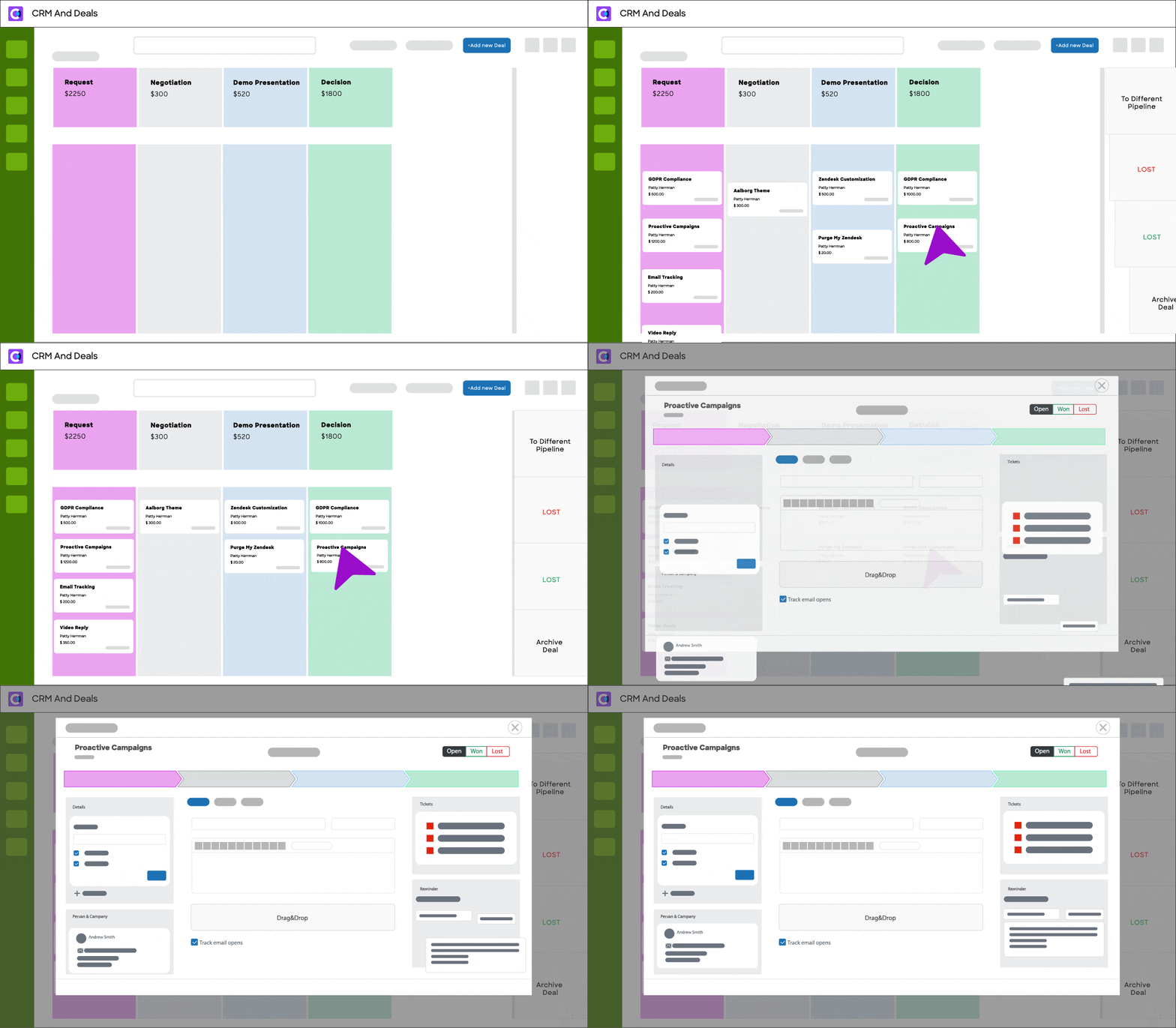
Try it for free for 7 days. Simply install a plugin to your Zendesk.
Want to get a personalized app setup? Book a 15-minute demo to customize CRM and Deals for your team and get started faster.
What You Can Do with CRM for Zendesk
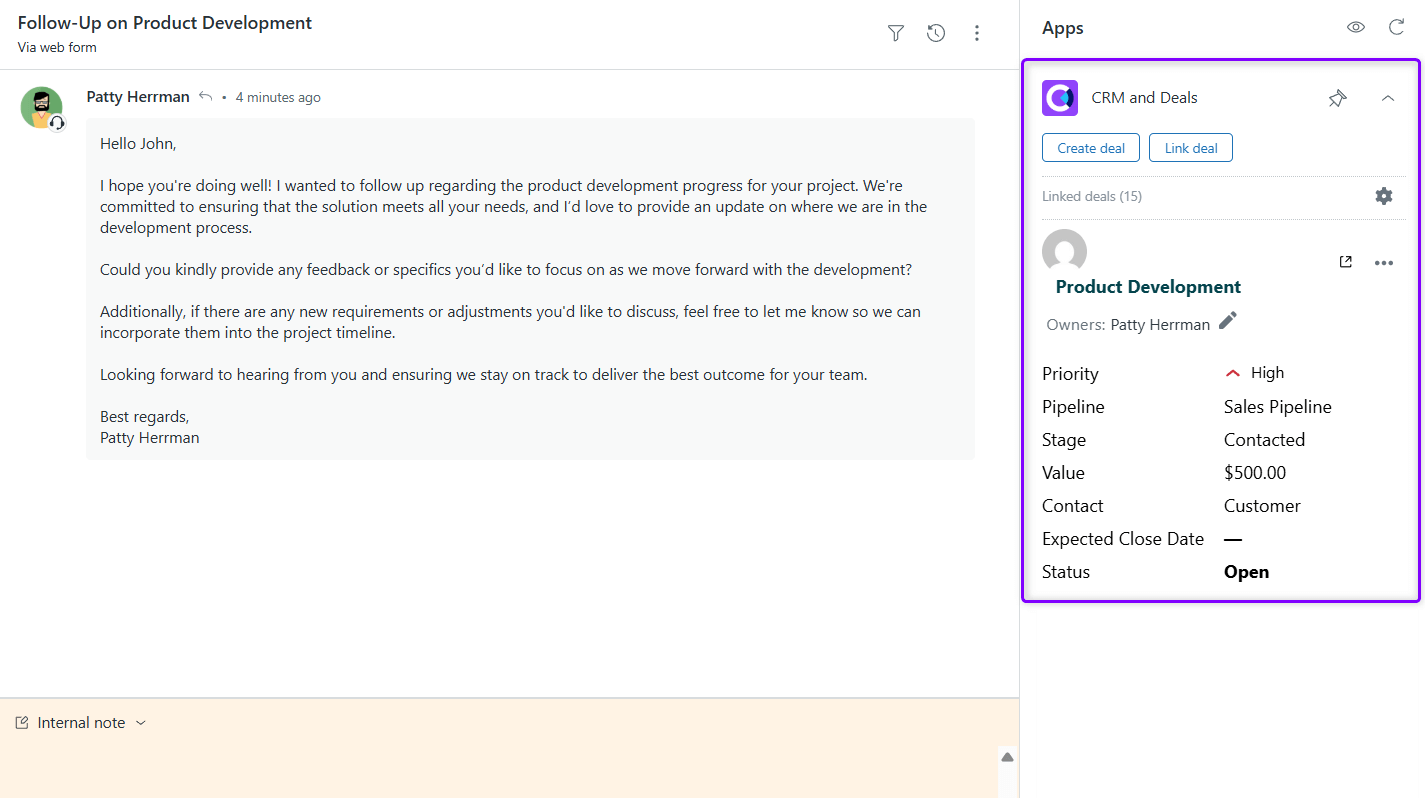
Turn support tickets into sales opportunities
When a support conversation reveals a potential sale, you don’t want to switch apps or copy information manually. With CRM and Deals, you can create a deal directly from the ticket view, automatically transferring customer and company details.
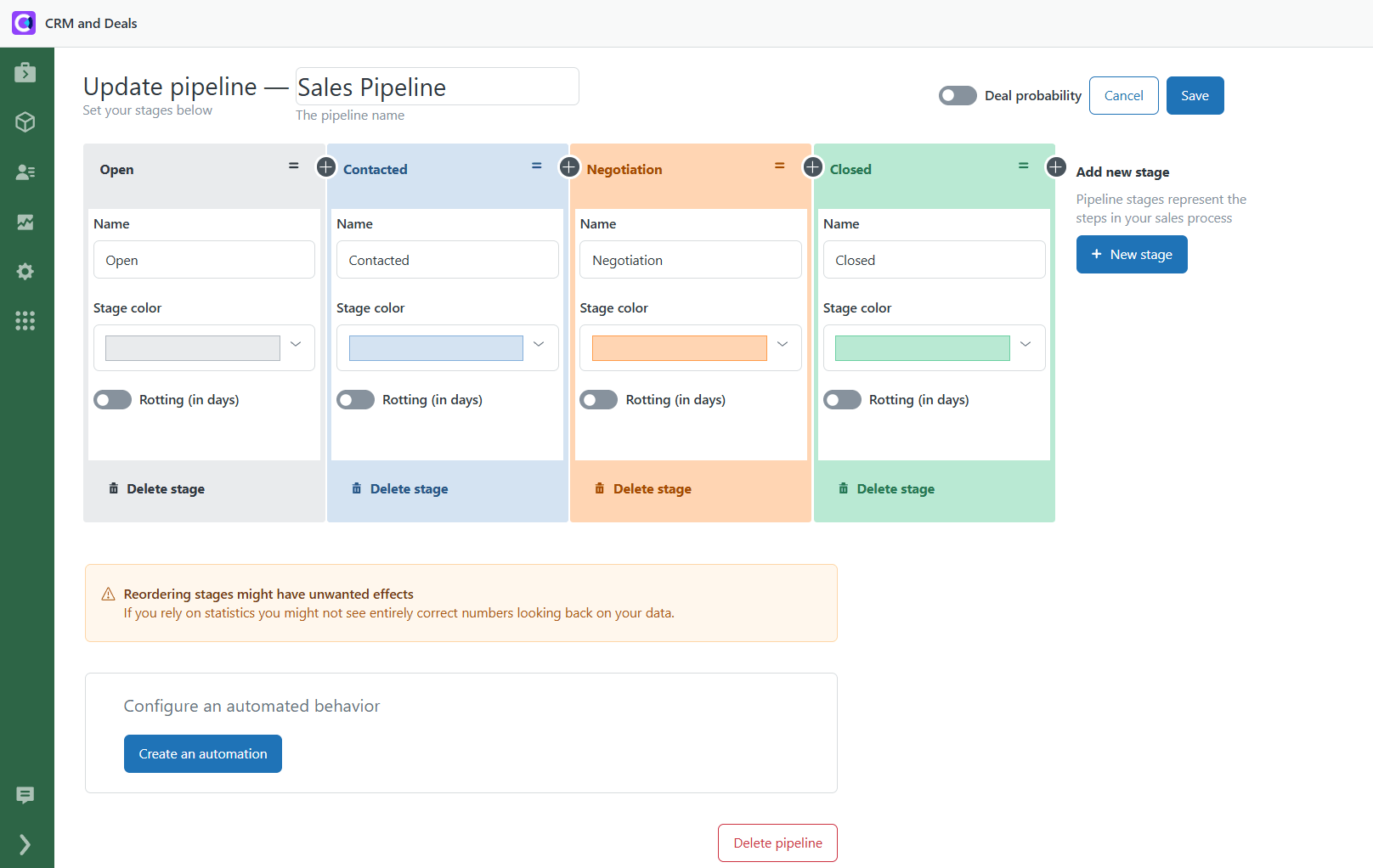
Run your sales process the way your team works
Every team has a unique sales workflow. Build custom pipelines and stages that match your process, move deals with drag-and-drop ease, and automate progression for deals that get stuck.
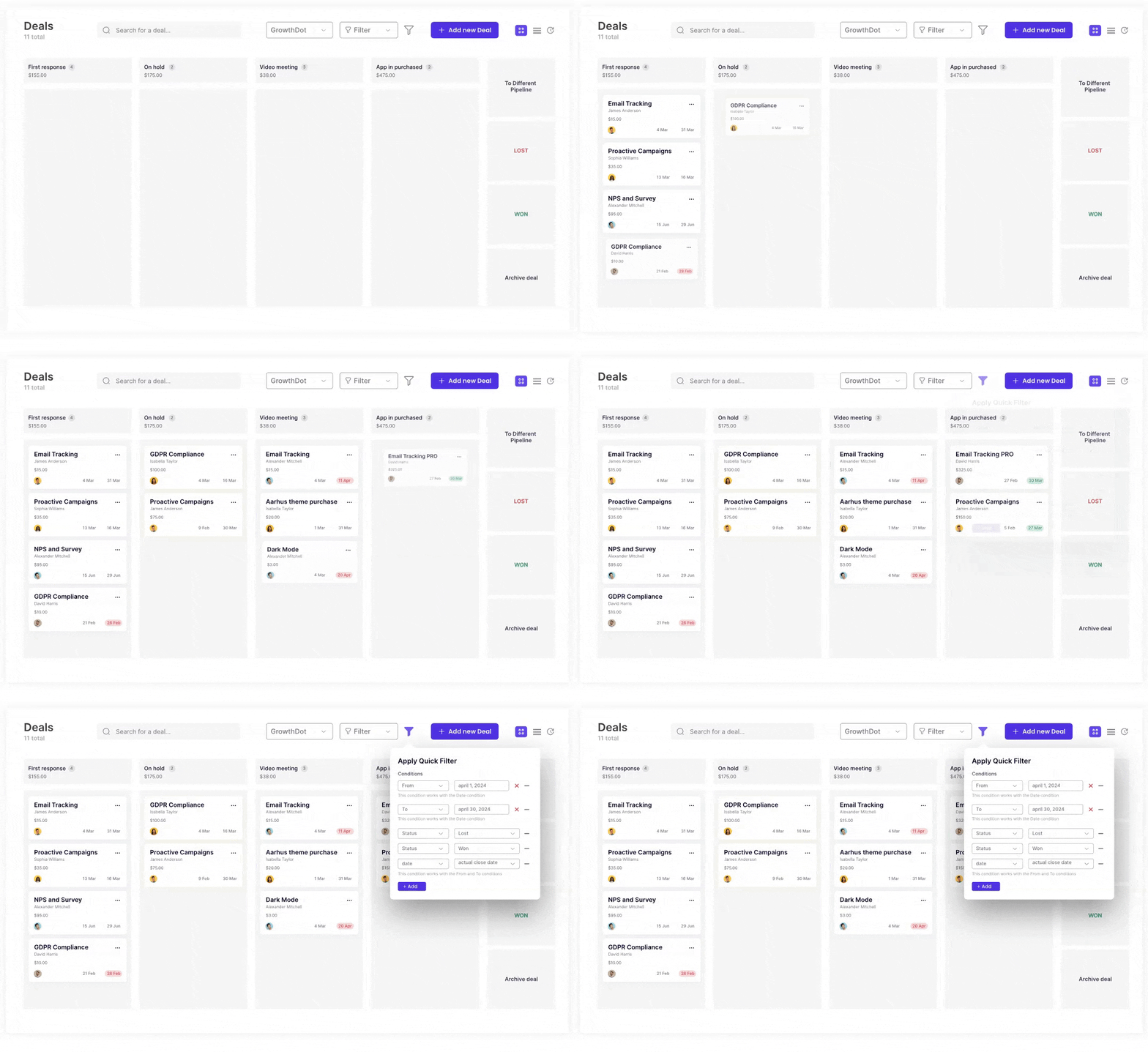
Find the deals that need your attention fast
When your pipeline grows, manually searching for deals wastes time. Use filters and quick search to instantly locate deals by assignee, stage, pipeline, or product.
Collect the information that matters for each deal
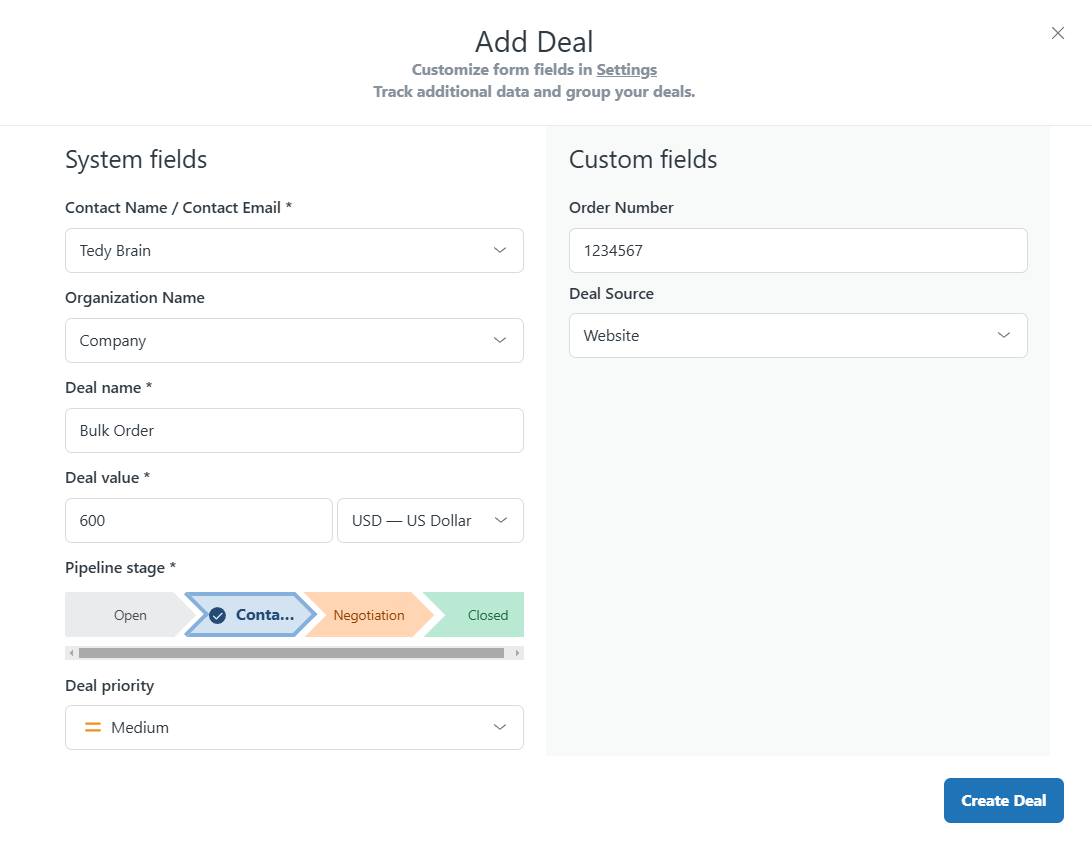
Use custom deal forms to collect the details you need, and link deals to specific products or services. Assign user statuses as contact, lead, prospect, or customer to track where each client is in your sales journey.
Forecast revenue and focus on top opportunities
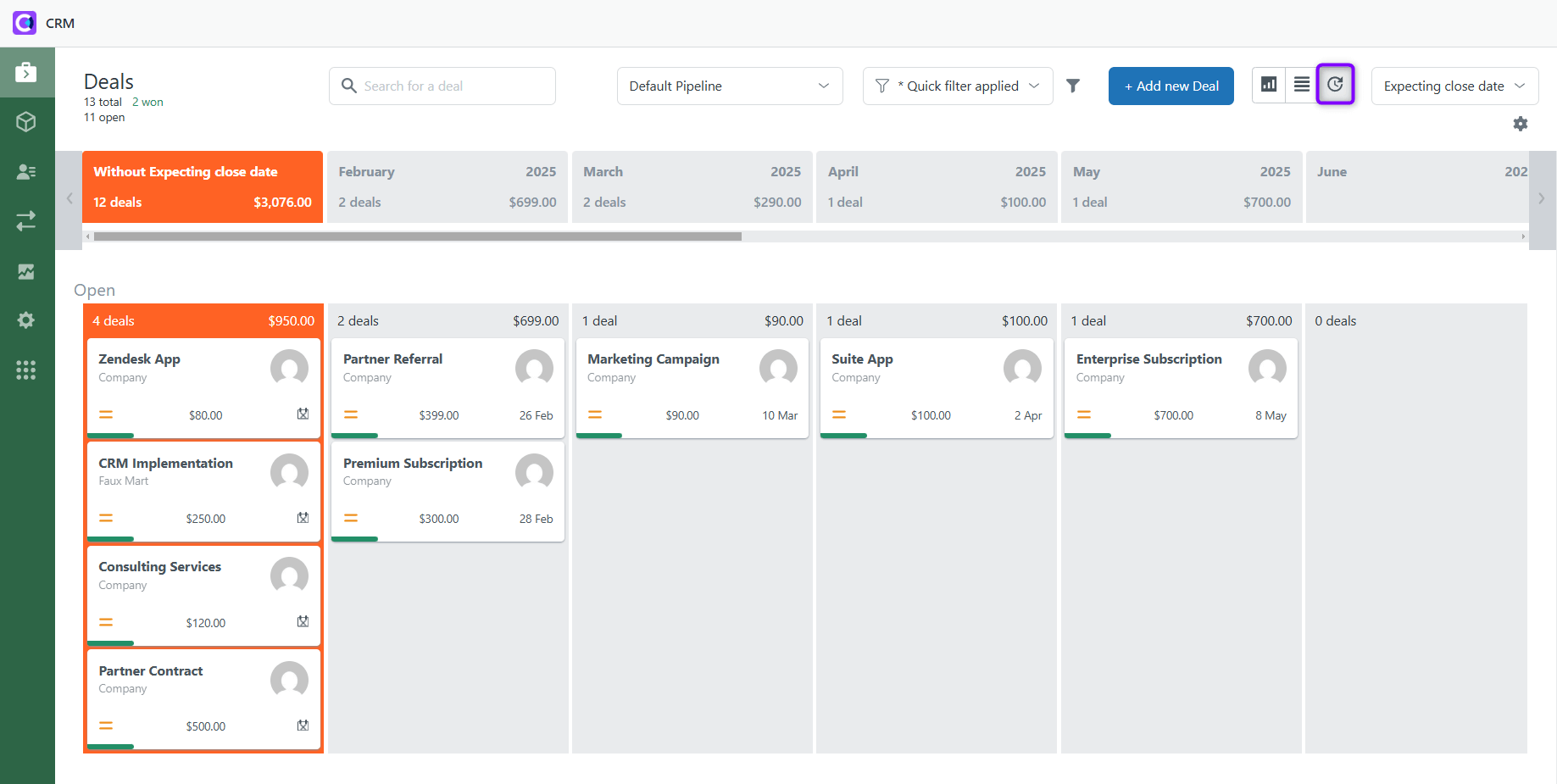
The default deal form has one handy field called the Expected closing date. With its help, you can plan your sales and get an overview of your performance. Switch to a Forecast mode to see deals you’re expecting to close each month.
Measure sales performance and improve results
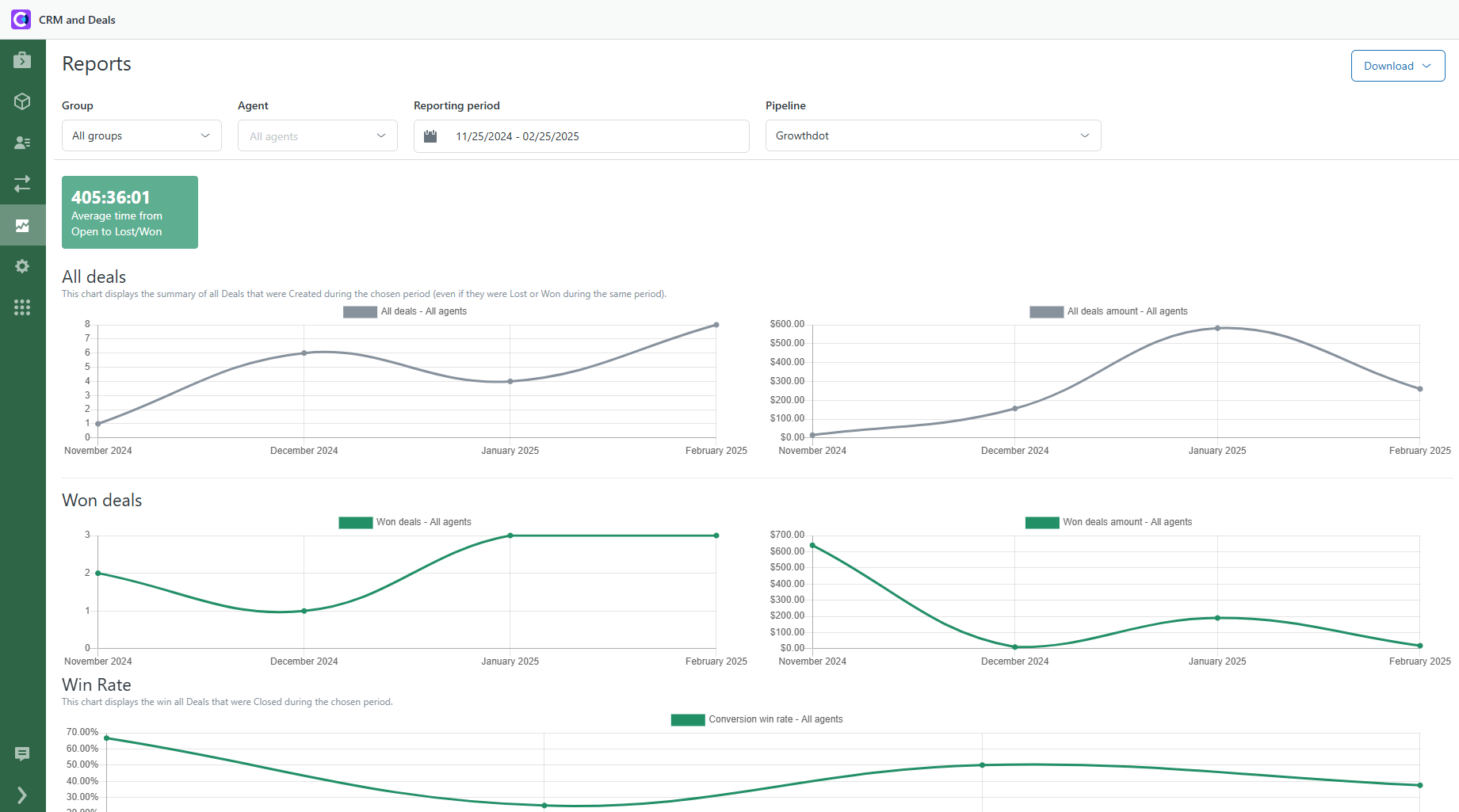
Understand won and lost deals, analyze trends, and review agent or group performance. Record reasons for lost deals and analyze them to identify patterns, improve your process, and prevent future losses. Downloadable reports let you measure results over custom periods and make informed decisions.
A Zendesk-native, affordable CRM system
CRM and Deals integration for Zendesk brings sales and support together in one place. It’s an affordable alternative to full CRMs like Zendesk Sell or Salesforce, designed specifically for small and mid-sized teams.
Secure data practices
CRM and Deals by GrowthDot accesses only the Zendesk data needed to deliver its features, follows Zendesk security guidelines, and respects existing roles and permissions. Customer data is processed securely and never shared or sold to third parties.
Ready to start with your 7-day free trial? Install it now!P.S. The app is completely free for Sandbox accounts.
App details
How to install
Getting started with CRM and Deals for Zendesk is quick and easy:
- Step 1: Install the app from the marketplace.
- Step 2: Choose the account to install the plugin into.
- Step 3: Go to Admin → Apps → Manage and make sure the app is enabled.
- Step 4: Open the app and authorize access.
- Step 5: Specify the industry your company works in and the problem you want to solve.
- Step 6: Start managing your sales effectively.
Leave a review
Share your experience with the rest of the Zendesk community