Escalator
Master complex tickets: Link, split, and escalate with Escalator
Total de instalações
50+
Funciona com
Support
Developer
Lovestock & Leaf
Sobre este aplicativo
One ticket, multiple issues, different teams? Escalator keeps it all connected.
Break complex tickets into manageable sub-tickets, route work to the right agents, teams, or external partners, and track everything without leaving Zendesk.
Whether you're handling several issues in one customer request or coordinating with other departments, Escalator lets each team manage its part while keeping related work connected.
Core features
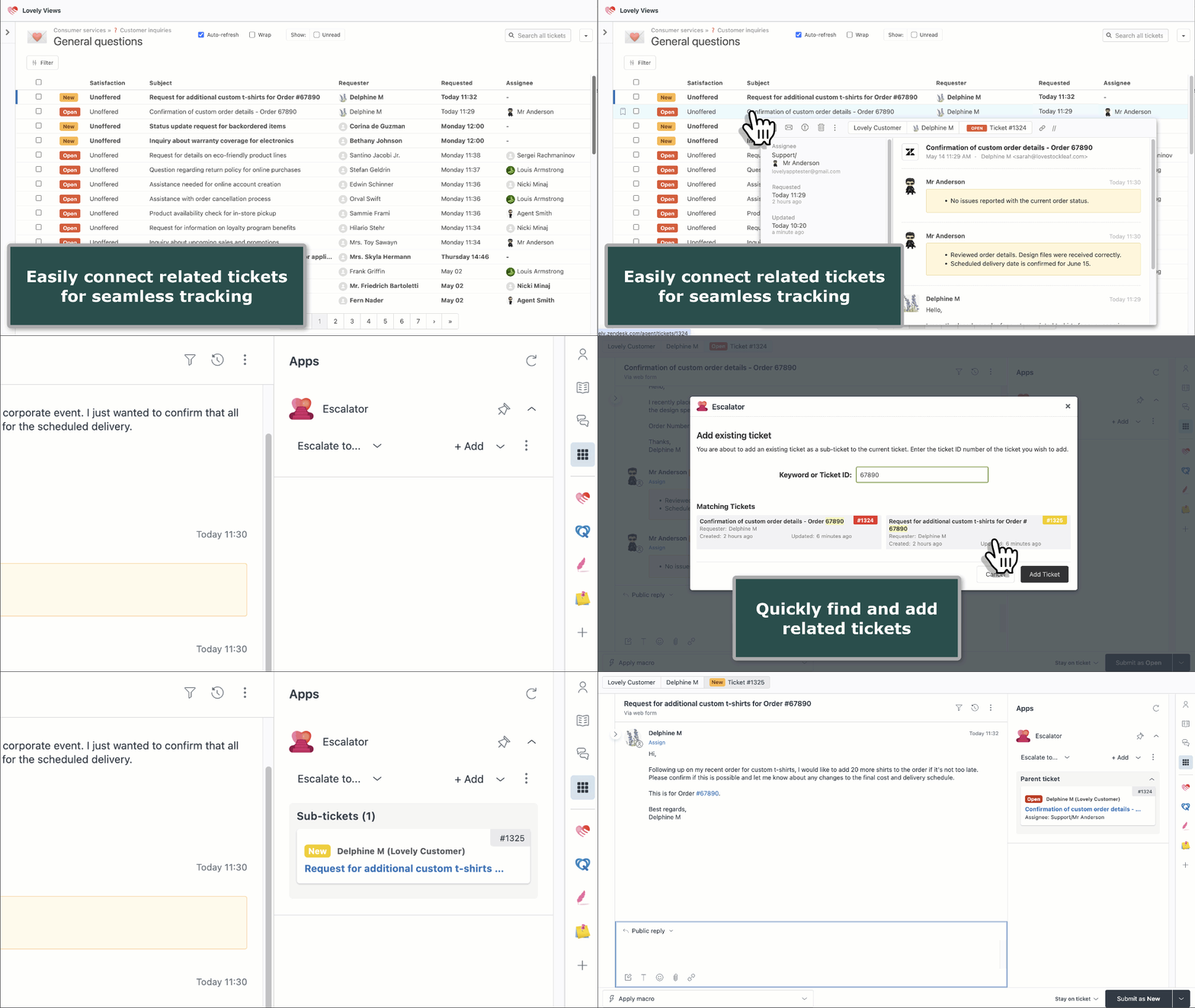
Link tickets: Connect related tickets and monitor their status directly in Zendesk.
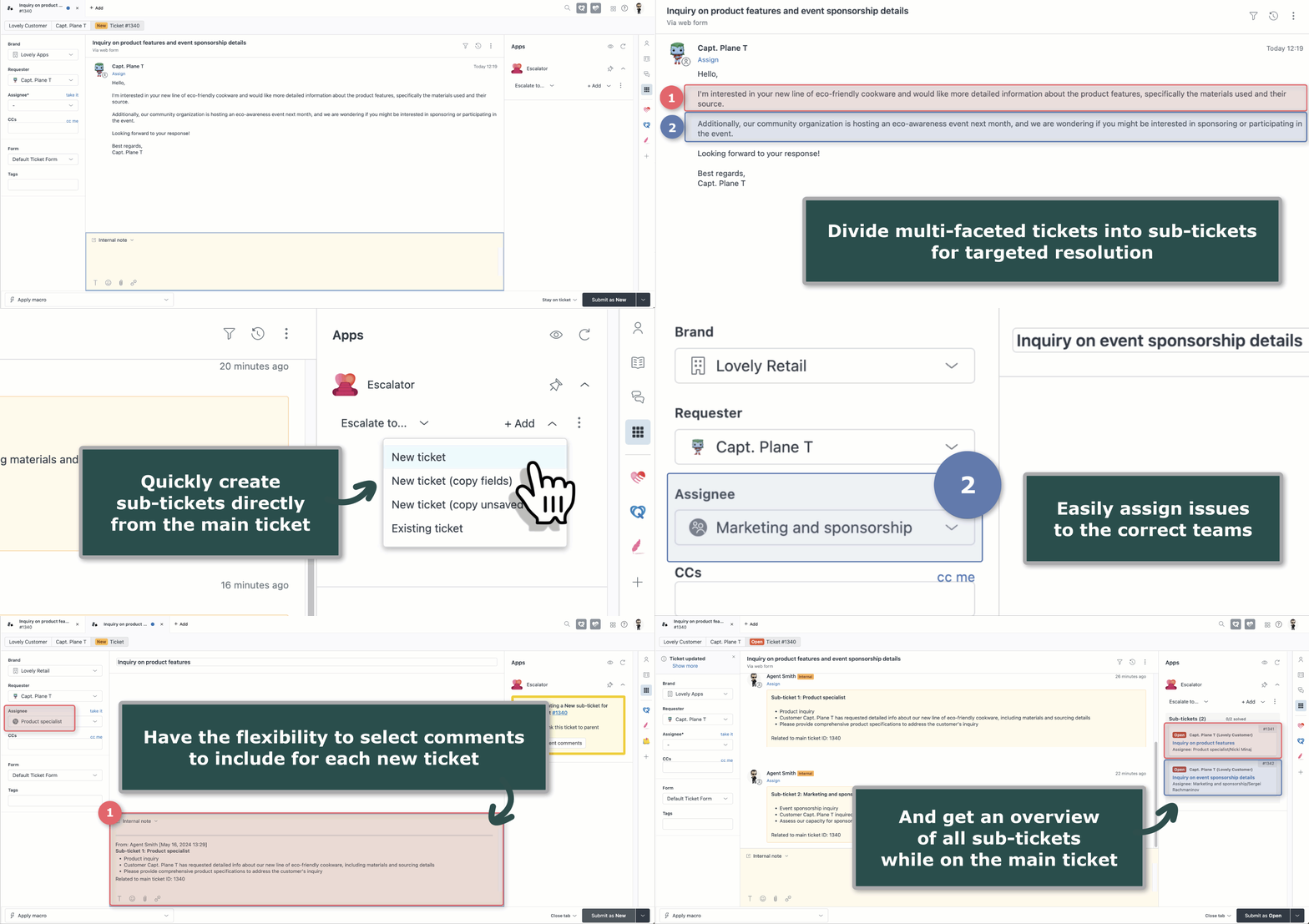
Split tickets: Break complex requests into smaller tasks using linked sub-tickets.
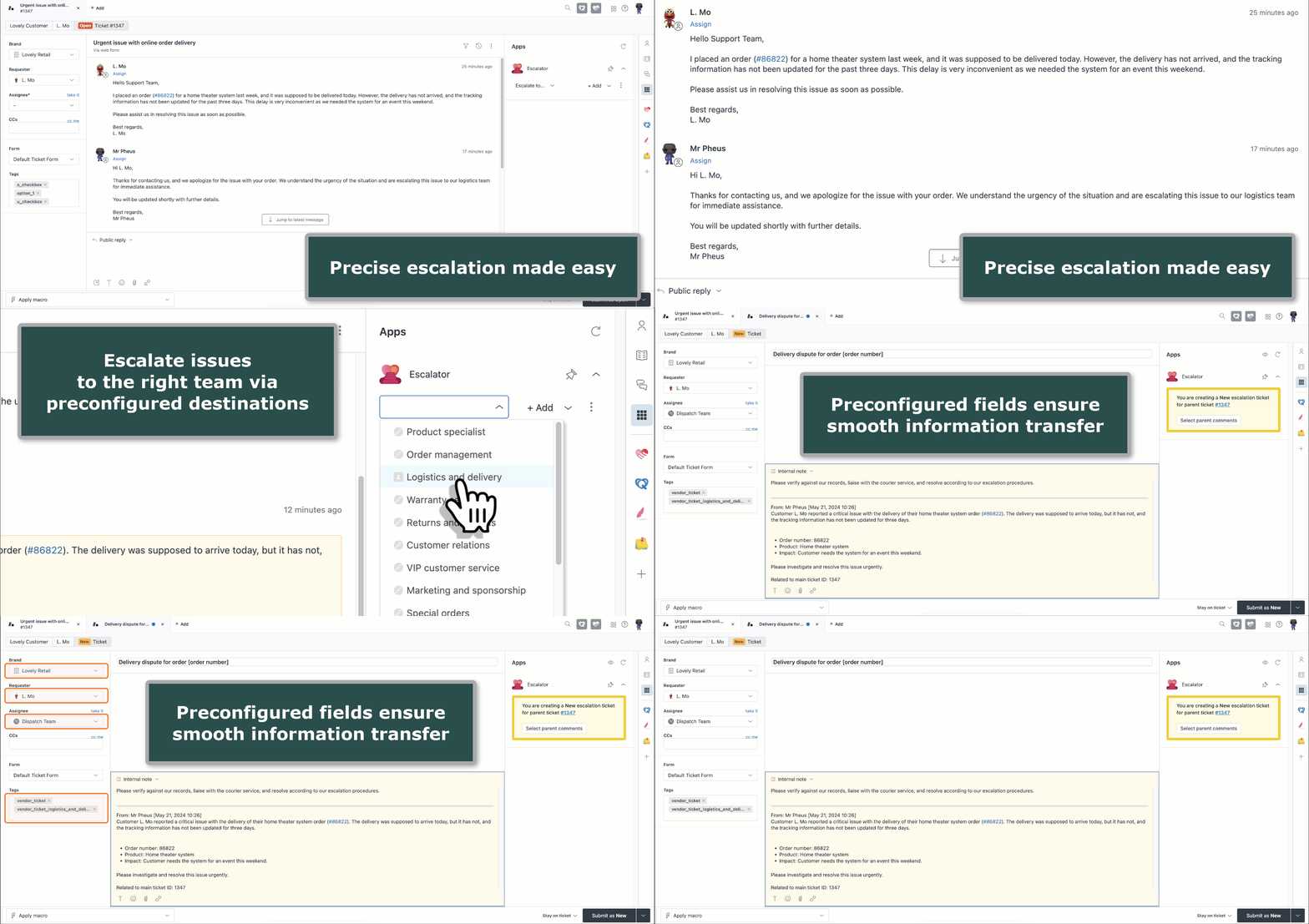
Escalate tickets: Send work to agents, groups, or external partners using preconfigured escalation paths.
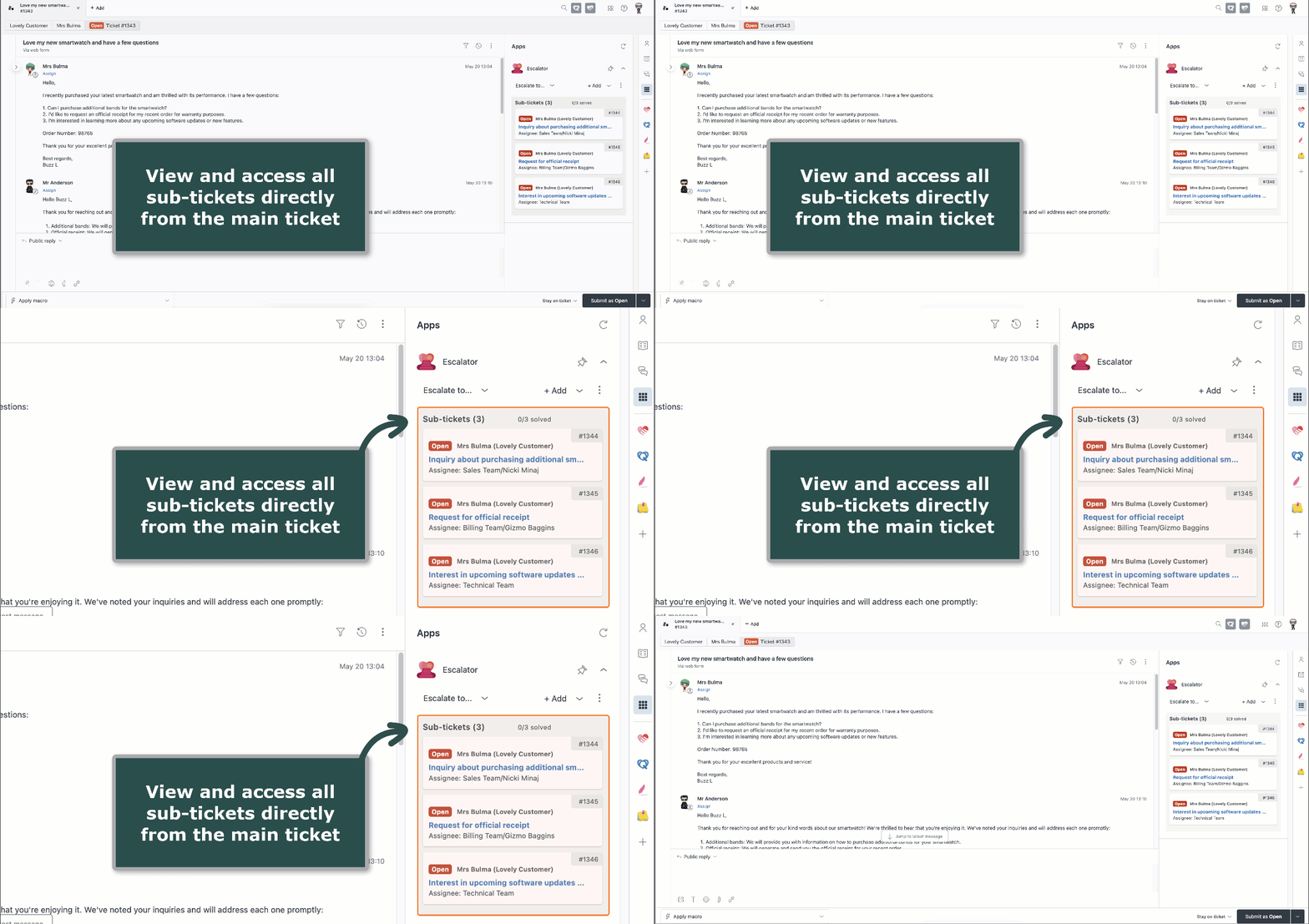
Track incidents: View linked problem and incident tickets together.
Advanced functionality
- Preconfigured escalations: Define assignees, requesters, ticket forms, custom fields, tags, and macros.
- Control what gets copied: Select public replies, internal notes, attachments, and complete side conversation threads.
- Customize access and menus: Restrict escalation paths by Zendesk group or role, and choose which sub-ticket options agents see.
- Track escalation progress: Follow ticket creation and parent linking, including saved parent macro updates when applicable.
- AI-assisted configuration: Use the downloadable schema with ChatGPT or Claude to prepare configurations for review and import through Backup & Restore.
Built on more than 14 years of Zendesk experience
Escalator is developed by Lovestock & Leaf, a Zendesk partner for more than 14 years and the team behind some of the Zendesk Marketplace's most popular, 5-star-rated apps.
Our apps are used by thousands of agents every day and continuously improved through customer feedback and hands-on Zendesk experience.
Escalator is backed by detailed documentation, ongoing development, and a support team that understands real-world Zendesk workflows.
See Escalator in action
Explore the features and demos on our Escalator product page, or visit the user guide for setup instructions and configuration details.
Try Escalator free for 14 days. It's also free for Zendesk sandbox accounts.
Need help with setup, volume pricing, or alternative payment options? Contact us at support@lovestockleaf.com.
Privacy policy
Your privacy is important to us.
Lovestock & Leaf apps do not transfer or store sensitive Zendesk data outside of Zendesk. All data is processed through Zendesk's APIs and remains within your Zendesk environment.
We are committed to transparency about how our apps handle Zendesk data.
For full details, please review our company privacy policy and Zendesk API data privacy handling notice.
Detalhes do aplicativo
Como instalar
The recommended way to configure Escalator is with the built-in settings editor. To use it, log in using an admin account, then click on the 'cog' icon in the app to open it.
Configuration Options
- Data Field Custom ticket field to store Escalator data.
- Default Tags Tags to add on subticket creation. More info coming.
- Fields to copy or exclude A comma separated list of the ticket custom field ids to include or exclude on newly created subticket.
- Copy only the fields listed above If this is ticked then only the fields bove are copied to the new ticket. If this is not ticked, then the fields above will not be copied to the sub ticket.
- Do not open app tray automatically If this is ticked then the apps tray will not be opened automatically if there are forked tickets.
- Escalator Data Field (optional) Recommend to leave as empty. Only enter if you had Escalator app running previously. This is to indicate the field which was used to store the escalation data.
- Escalations Configuration List of all the escalations and their options. Please use the built-in app settings editor for this.
Deixe uma avaliação
Compartilhe sua experiência com o resto da comunidade Zendesk